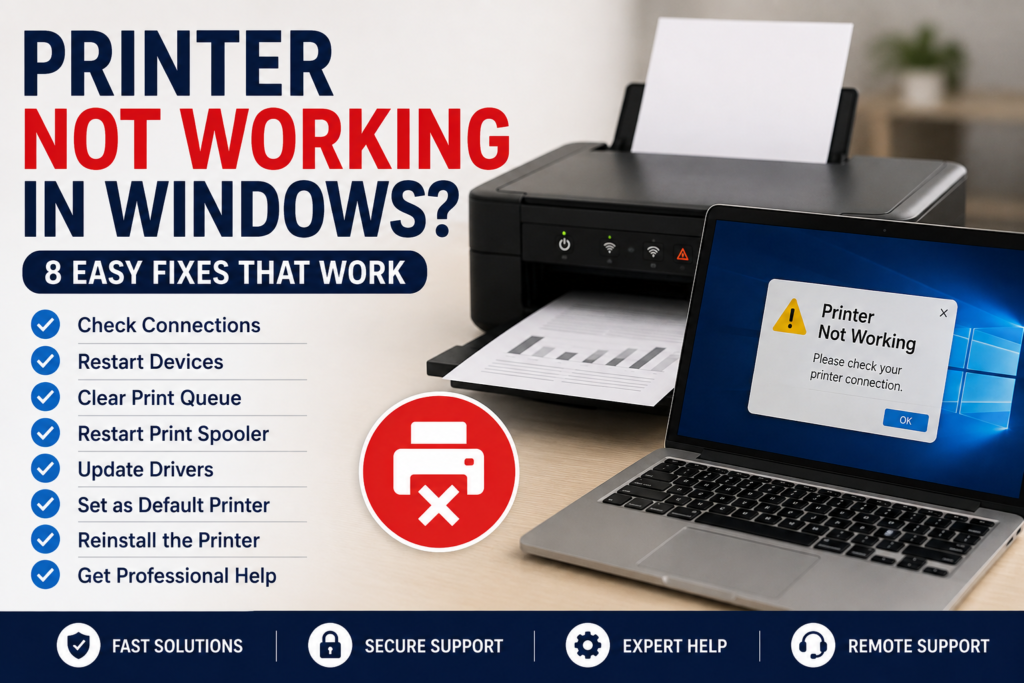
Is your printer not working in Windows? You may be dealing with a connection problem, outdated driver, stuck print jobs, or a Windows printing service issue. The good news is that many printer problems can be fixed with a few simple troubleshooting steps.
In this guide, we’ll walk you through 8 practical fixes to help get your printer working again on Windows 10 and Windows 11.
1. Check the Printer Connection
Before changing drivers or Windows settings, check the basic connection first. If you are using a USB printer, make sure the cable is securely connected to both the printer and computer. Try another USB port if available.
For a wireless printer, make sure the printer is connected to the same Wi-Fi network as your Windows PC. If the printer shows an offline or disconnected message, reconnect it to your Wi-Fi network before continuing.
If you are dealing with a printer not working in Windows, checking the physical or wireless connection is a good place to start
2. Restart Your Printer and Computer
A simple restart can often fix temporary printer problems. Turn off the printer and unplug it from the power outlet. Wait about 30 seconds, then plug it back in and turn it on.
After the printer starts up, restart your Windows computer. Once Windows loads, try printing again. This can clear temporary communication problems between your computer, printer, and printing services.
3. Check the Printer’s Wi-Fi Connection
If you are using a wireless printer, make sure it is connected to the correct Wi-Fi network. Your Windows PC and printer should normally be connected to the same network so they can communicate with each other.
Check the printer’s display or network settings to confirm the Wi-Fi connection. If the printer is disconnected, reconnect it to your Wi-Fi network and then try printing a test page.
4. Clear Stuck Print Jobs
If you are using a wireless printer, make sure it is connected to the correct Wi-Fi network. Your Windows PC and printer should normally be connected to the same network so they can communicate with each other.
Check the printer’s display or network settings to confirm the Wi-Fi connection. If the printer is disconnected, reconnect it to your Wi-Fi network and then try printing a test page.
5. Restart the Print Spooler Service
The Print Spooler is a Windows service that manages print jobs and helps your computer communicate with the printer. If this service gets stuck, your printer may stop responding or documents may remain in the print queue.
To restart it, press Windows + R, type services.msc, and press Enter. Find Print Spooler, right-click it, and select Restart. Then try printing again.
6. Update or Reinstall the Printer Driver
An outdated or corrupted printer driver can prevent Windows from communicating properly with your printer. Check the printer manufacturer’s website for the latest driver that matches your printer model and version of Windows.
If updating the driver does not fix the problem, you can remove the printer from Windows and reinstall it using the latest driver. This can resolve driver-related printing errors and communication problems.
7. Set Your Printer as the Default Printer
If Windows is sending print jobs to the wrong device, setting your preferred printer as the default can solve the problem. Open Settings → Bluetooth & devices → Printers & scanners and select your printer.
Choose your printer and set it as the default printer. If Windows is managing your default printer automatically, turn that option off first, then select the printer you want to use.
8. Fix a Printer Not Working by Reinstalling It
If your printer is still not working, removing it from Windows and adding it again can resolve configuration and connection problems. Go to Settings → Bluetooth & devices → Printers & scanners, select your printer, and choose Remove.
Restart your computer, then return to Printers & scanners and select Add device. Follow the instructions to add your printer again. If Windows cannot find it automatically, you may need to install the latest driver from the printer manufacturer’s website.
These steps can also help if you have a printer not working after changing Windows settings or reinstalling the printer.
When to Contact Technical Support
If your printer not working problem continues after trying these troubleshooting steps, the issue may be related to a driver, Windows configuration, network settings, or the printer hardware.
Consider getting professional technical support if:
- Your printer repeatedly goes offline.
- Windows cannot detect the printer.
- Print jobs continue getting stuck.
- The printer shows recurring error messages.
- You have already reinstalled the printer and driver but it still does not work.
- You are unsure which Windows or printer settings to change.
A technical support professional can help identify the cause of the problem and determine the safest way to get your printer working again without making unnecessary changes to your computer.
Final Thoughts
When your printer is not working in Windows, start with the simple solutions first.
If Windows is also having update problems, see our guide on Windows Update Not Working.
For additional troubleshooting steps, you can also check Microsoft’s official guide for fixing printer connection and printing problems in Windows.
At Fix My PC Support, we provide remote technical support for common Windows PC problems, including printer issues, Windows errors, software problems, PC optimization, and Microsoft 365 support.
Need professional help with your printer or Windows PC? Check our Remote IT Support Plans and choose the option that works best for you.
If your entire computer is running slowly, check our guide on How to Fix a Slow Windows PC.
Need help with your printer or Windows PC? Contact Fix My PC Support and let us help you get your computer working properly again.